Personalization Reference
Technical reference for Fashion.AI's Personalization API endpoints. For an overview of recommendation types and how our AI works, see Getting Started with Recommendations.
Base Configuration
Base Endpoint
https://catalog.api.fashionai.dev/api/v1/products/protected/recommendation
Required Headers
{
  "Content-Type": "application/json",
  "X-FashionAI-APP-Token": "<your_app_token>"
}
Generate your token at: https://app.generativecrm.com/settings?tab=app-tokens
How Our AI Works
Intent Mapping Process
- Product Navigation: Tracks products users have navigated during the session
- Category Elements: Analyzes visual elements like silhouettes, patterns, and styling details
- Pattern Insights: Identifies textures, fabrics, and structural elements
- Styling Intent: Understands occasion, style preferences, and versatility needs
- User Behavior: Cross-references searches, products, and past purchases for logged-in users
- Intent Prediction: Relates products from different categories based on style mapping
API Endpoints
Product View Event
When a user clicks on a product, a product view event should be triggered to Fashion.AI, showing to the user a set of similar products. If the user is logged in, fashion shows a specific set of products based on its history. This event is a strong signal of user intention and helps the AI map user intent, serving as the foundation for storefront organization, product recommendations, and CRM profile enrichment.
Request Body
{
  "userId": "90",            // optional - user identifier if authenticated
  "sessionId": "sess456",    // required
  "eventType": "productView", // required
  "data": {
    "id": "id789"      // required - product ID
  }
}
Expected Response
{
  "products": ["product-id-1", "product-id-2", "product-id-3"]
}
⚠️ Note 1: This response includes all similar products ranked by session and user relevance, which can be used for storefront organization.
⚠️ Note 2: This response will be empty while the AI doesn't have sufficient data about the user and/or session. In these cases, organize the storefront according to your platform's native solution.
Category View Event
When a user visits a category page (e.g., "Pants"), a category view event should be triggered to Fashion.AI. If the user is logged in, fashion shows a specific category view based on its history. This event is a strong signal of user intention and helps the AI map user intent, serving as the foundation for storefront organization, product recommendations, and CRM profile enrichment.
Request Body
{
  "userId": "90",            // optional - user identifier if authenticated
  "sessionId": "sess456",    // required
  "eventType": "categoryView", // required
  "data": {
    "id": "category789"      // required - category ID
  }
}
Expected Response
{
  "products": ["product-id-1", "product-id-2", "product-id-3"]
}
⚠️ Note 1: This response includes all category products ranked by session and user relevance, which can be used for storefront organization.
⚠️ Note 2: This response will be empty while the AI doesn't have sufficient data about the user and/or session. In these cases, organize the storefront according to your platform's native solution.
Shop The Look Event
Enable the "shop the look" button to display, via modal or drawer, additional products that make up the complete look for a main piece.
Request Body
{
  "userId": "90",            // optional - user identifier if authenticated
  "sessionId": "sess456",    // required
  "eventType": "shopTheLook", // required
  "data": {
    "id": "product789"       // required - product ID
  }
}
Expected Response
{
  "products": ["product-id-1", "product-id-2", "product-id-3"]
}
⚠️ Note: Although the API filters out-of-stock products, stock validation should be done locally before rendering in the frontend.
Custom Shelf Event
Returns a personalized product list based on the user's browsing behavior during the session. Use this event to populate custom shelves without tying the recommendation to a specific product or category.
Request Body
{
  "userId": "90",            // optional - user identifier if authenticated
  "sessionId": "sess456",    // required
  "eventType": "customShelf", // required
  "data": {
    "id": ""                 // required - send as empty string
  }
}
Expected Response
{
  "products": ["product-id-1", "product-id-2", "product-id-3"]
}
⚠️ Note: This response will be empty while the AI doesn't have sufficient data about the user and/or session. In these cases, organize the storefront according to your platform's native solution.
Recommendation Settings
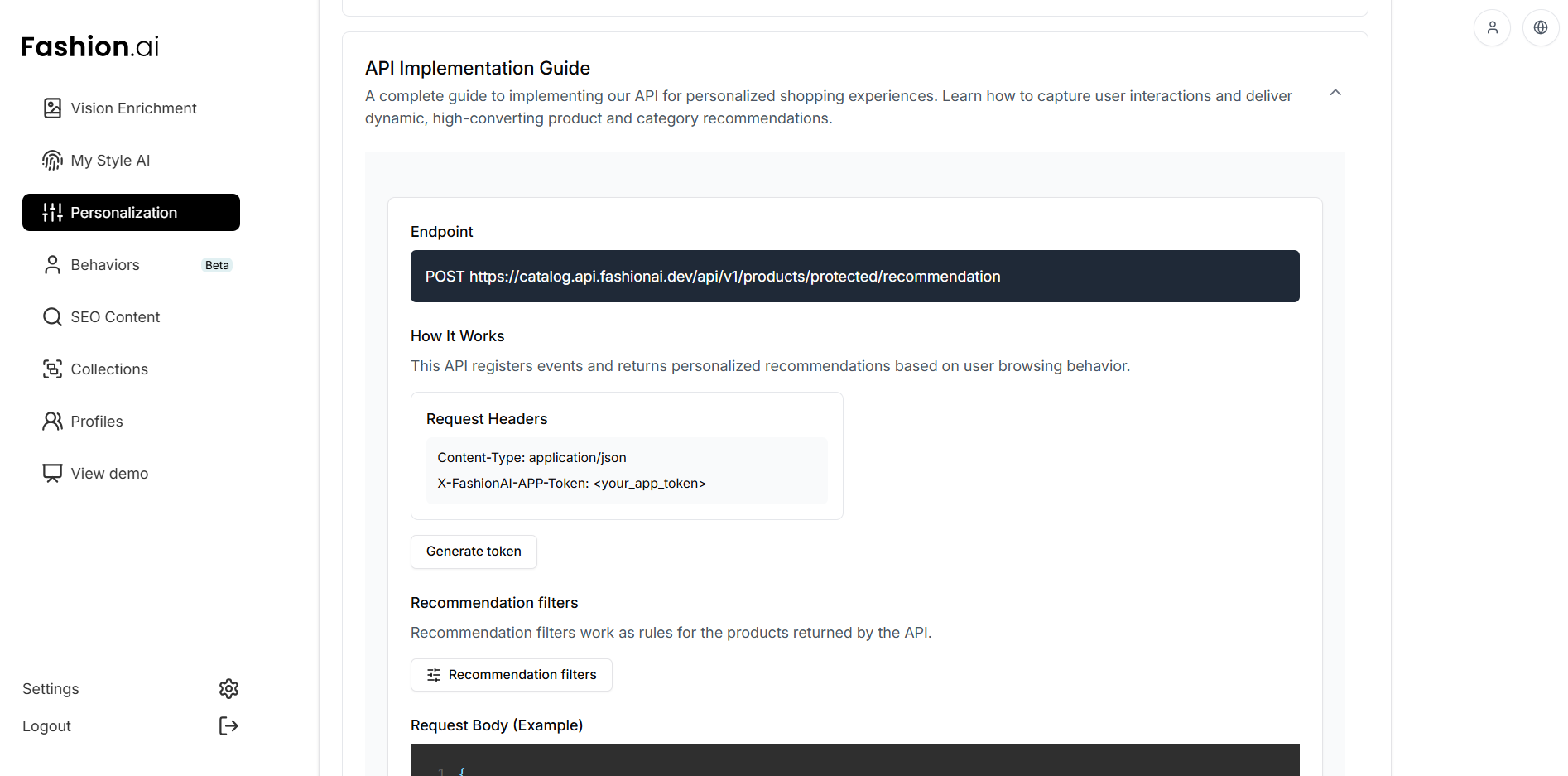
The settings panel allows you to define filters for each recommendation type individually. Access the settings and select the tab for the desired type: Product, Category, or Shop the Look. Each type must be saved separately.
On the Personalization page, under API Implementation Guide, click the Recommendation filters button to open the settings panel:
The settings modal will appear with the available filters for each recommendation type:
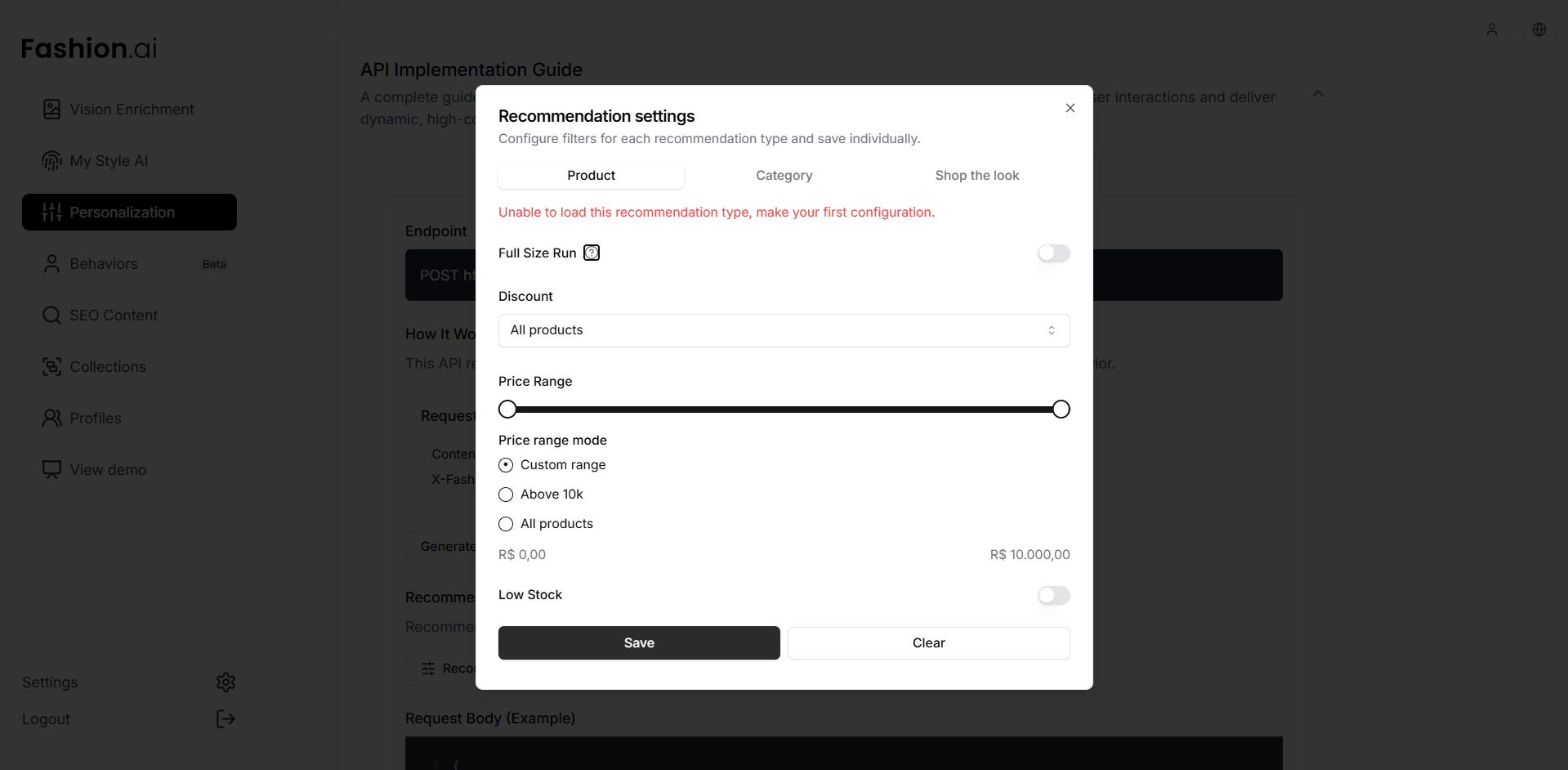
Available Filters
Full Size Run
When enabled, the AI prioritizes products that complement the current stock size grid, recommending items that help balance size availability.
Discount
Filters recommended products based on discount status:
| Option | Description |
|---|---|
| All products | Recommends products regardless of whether they are on sale or not |
| Only with discount | Recommends only products that have an active discount |
| Only without discount | Recommends only full-price products |
Price Range
Defines the price range of recommended products. Three modes are available:
| Mode | Description |
|---|---|
| Custom range | Allows you to manually set the minimum and maximum values using the slider |
| Above 10 thousand | Filters only products priced above R$ 10,000.00 |
| All products | No price filter applied — recommends products at any price |
Low Stock
When enabled, the AI will not include low-stock products in recommendations. The Limit field will appear, allowing you to select the number your company considers low stock (for example, 10 means products with 10 or fewer units in stock will not be recommended).
How to Save
- Select the tab for the recommendation type you want to configure (Product, Category, or Shop the Look)
- Adjust the filters as desired
- Click Save to apply the settings for that type
- To reset the filters, click Clear
⚠️ Note: Each recommendation type has its own configuration. Changes made in one tab do not affect the others. Make sure to save each type individually.
Security and CORS
To protect the authentication token (X-FashionAI-APP-Token), we block direct browser requests. If an API call is made directly from the frontend, the browser will block this request with a CORS error.
This measure prevents the token from being exposed in the website's source code, which could compromise API security and allow unauthorized use.
If your team still chooses to make calls directly from the frontend, simply request domain authorization from FashionAI technical support. 📫 support@generativecrm.com