Smart Recommendations
Learn about Fashion.AI's intelligent system and how it enhances customer experience through personalized product suggestions powered by advanced AI.
Recommendation Types
Similar Products
Deliver personalized product suggestions based on user navigation history. Powered by 4,500+ product attributes, this API helps increase conversion by showing items that match the shopper's style and intent.
Use Cases:
- Product page recommendations
- Category browsing enhancement
- Cross-selling opportunities
Technical documentation about Similar Products →
Shop the Look
Automatically identify and recommend additional products featured in the same image. Turn every look into a complete outfit—just like a personal stylist would.
Use Cases:
- Complete outfit suggestions
- Style inspiration
- Upselling complementary items
Technical documentation about Shop the Look →
Visual Merchandising
Reorganize product listings dynamically based on what the user is really looking for. Create high-performing, personalized category displays that feel like a custom storefront.
Use Cases:
- Dynamic category organization
- Personalized homepage layouts
- Seasonal trend highlighting
Technical documentation about Visual Merchandising →
Customize Your Recommendations
You can control which products the AI recommends by applying custom filters for each recommendation type: Product, Category, and Shop the Look.
How to Access
- In the sidebar menu, go to Personalization
- Under the API Implementation Guide section, click the Recommendation filters button
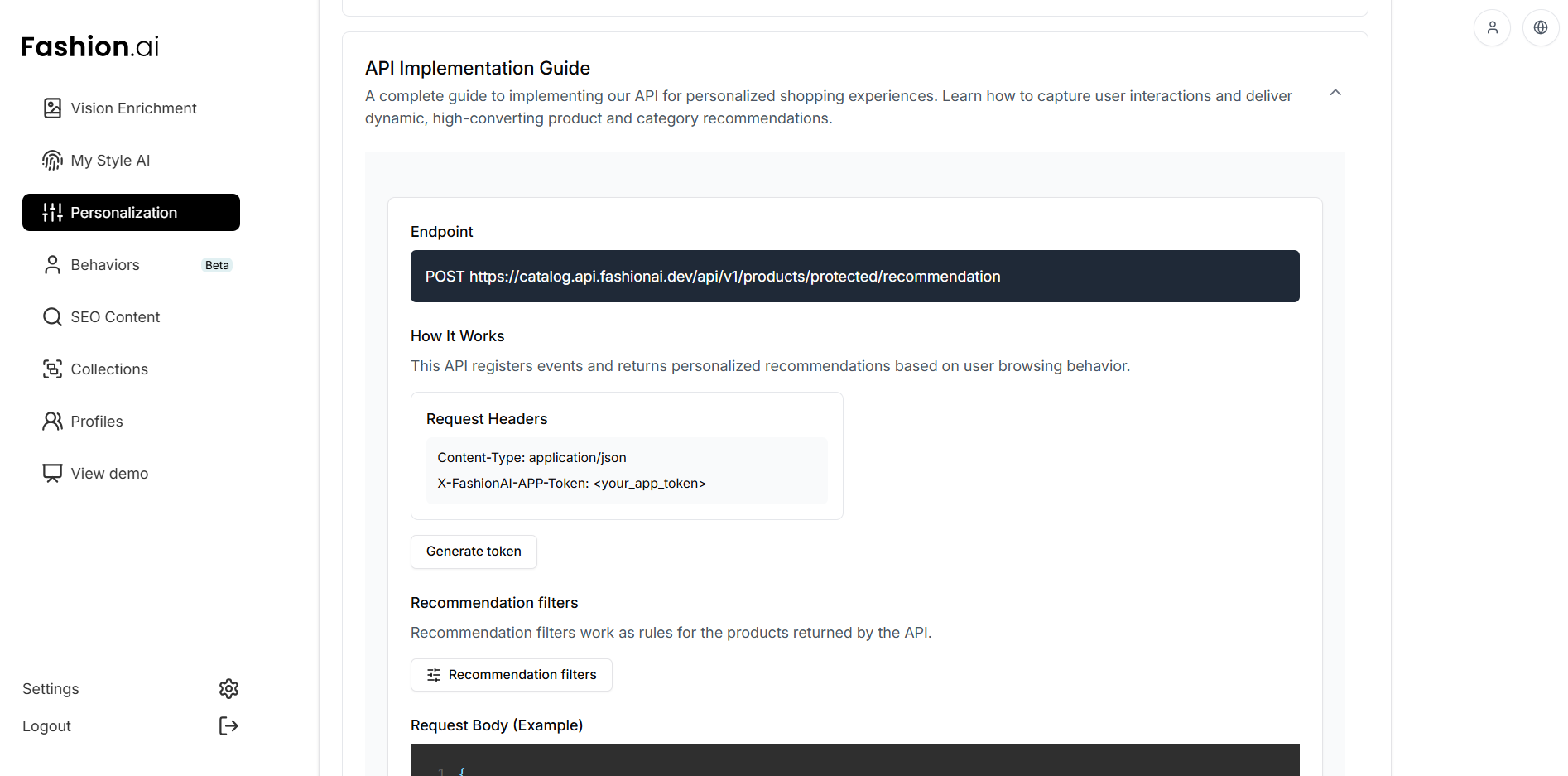
- The settings panel will open:
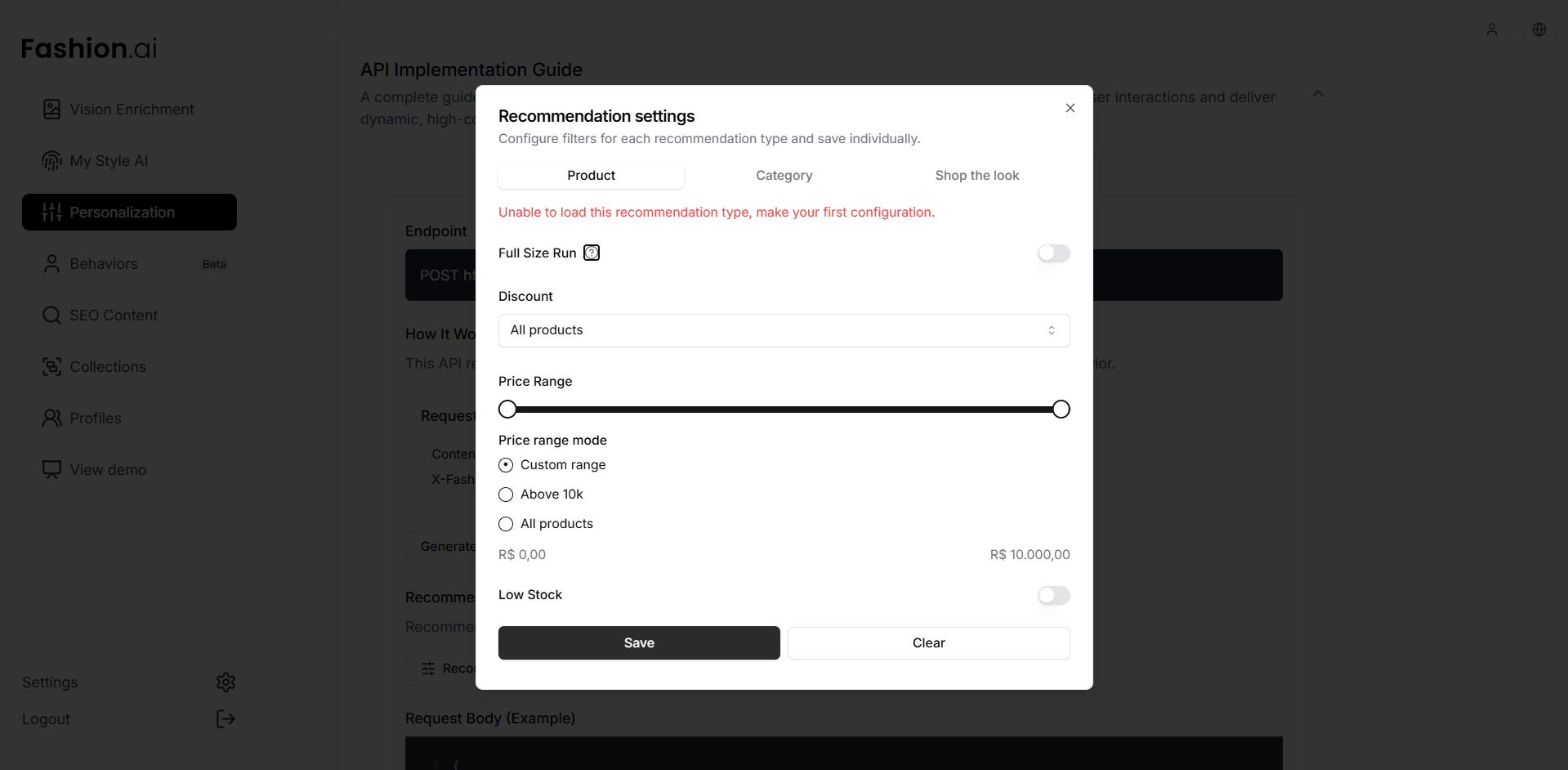
Available Filters
| Filter | What it does |
|---|---|
| Full Size Run | Prioritizes products that help balance your stock's size grid |
| Discount | Choose between recommending all products, only discounted, or only full-price |
| Price Range | Set a price range for recommended products — use a custom range, filter above R$ 10k, or include all |
| Low Stock | Excludes products with stock below the defined limit from recommendations (when you click "Low Stock", a field will appear to select the number your company considers low stock - a 100% customized experience) |
Step by Step
- Choose the type — select the Product, Category, or Shop the Look tab
- Adjust the filters — enable or disable each filter according to your strategy
- Save — click Save to apply. Each type is saved separately
- Repeat — if you want different settings for another type, switch tabs and repeat the process
💡 Tip: You can use different filters for each type. For example, prioritize full size run only for Product recommendations, and filter by discount only for Shop the Look.
⚠️ To clear all filters for a type, click Clear.
Next Steps
🚀 Ready to implement recommendations? Choose your integration path:
- API Reference - Technical implementation guide
- Authentication - Set up your API access
- UI Integration - Frontend implementation examples
- Search API - Intelligent product search
- Analytics Setup - Track performance