Tickets
Use the tickets area to talk to support, follow replies, and organize requests by priority and status.
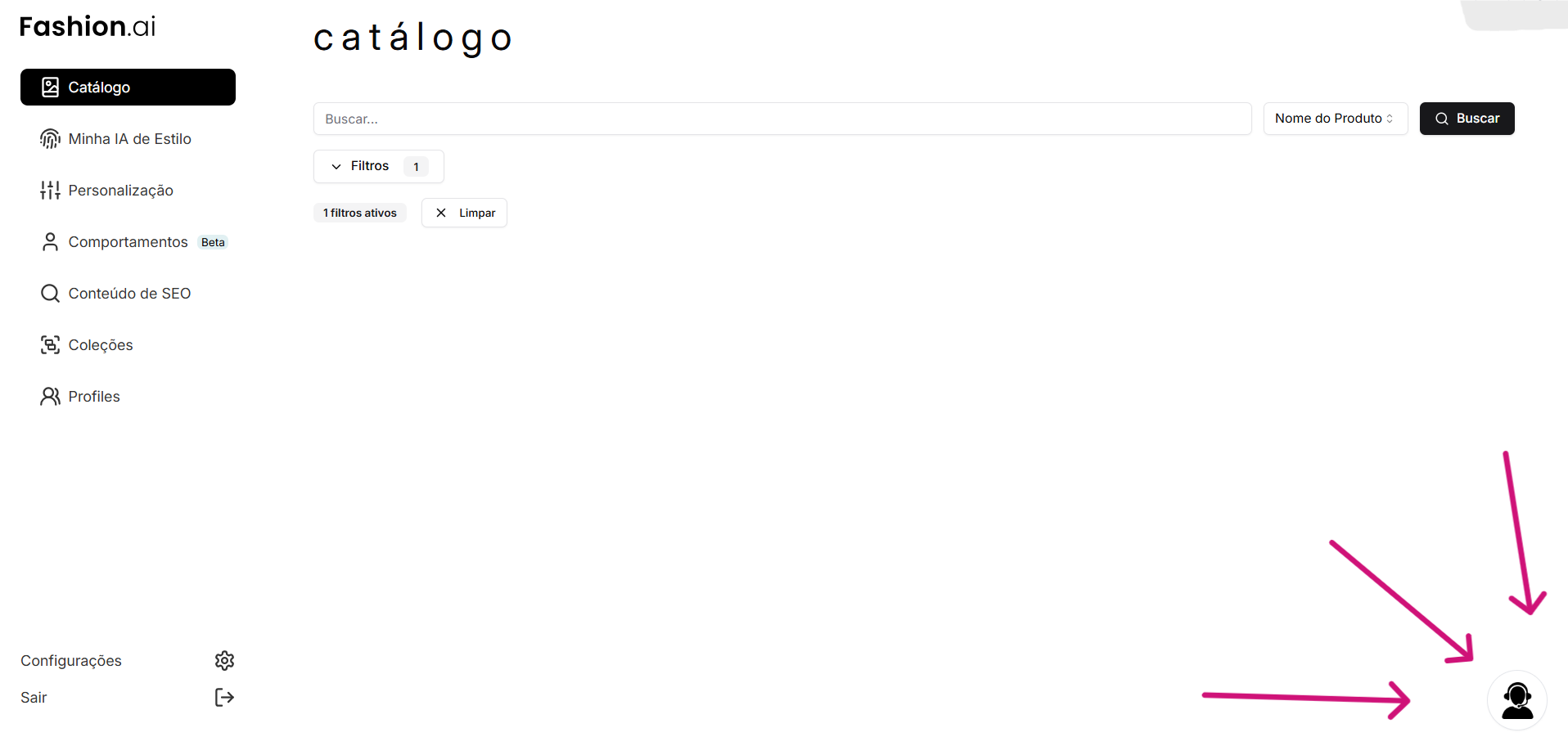
To open this area, just click the support icon in the bottom-right corner of the platform.
When to use tickets
Open a ticket when you need help with a platform operation, want to report a bug, or need to follow up on a request with the support team.
Common examples:
- error in a platform feature
- operational question that needs analysis
- issue with synchronization or processing
- request that needs context, screenshots, or history
- Use tickets to talk to support and track the progress of requests.
- You can filter, reply, and follow the SLA by priority.
How the screen is organized
When you open the page, you will see it split into two main areas:
| Area | Description |
|---|---|
| left side | ticket list, filters, and pagination |
| right side | selected ticket conversation, details, and reply field |
At the top of the screen, there is also a Refresh button to reload the information.
At the bottom, there is an SLA summary by priority for quick reference.
Typical flow
In practice, usage usually follows this path:
- Open the tickets screen.
- Use filters to find the ticket you want to follow.
- Click the ticket in the list on the left.
- Read the history in the panel on the right.
- Send a reply or update the ticket, if your profile has permission.
How to open a new ticket
To create a ticket:
- Click the support image in the bottom-right corner of the platform.
- In the
Open new ticketcard, fill in theSubject. - Choose the
Priority. - Write a message and/or add images.
- Click
Create ticket.
What is required
| Field | Rule |
|---|---|
Subject | is required |
message or image | you must send at least one option |
This means you do not need to send text and image at the same time, but one of them must exist.
Available priorities
LowHighCritical
Image rules
| Rule | Value |
|---|---|
| limit per submission | up to 3 images |
| accepted formats | JPG, PNG, and WEBP |
| maximum size per file | 2MB |
How to reply to a ticket
To continue a conversation in a ticket:
- Select the ticket in the list.
- Go to the
Reply to ticketarea. - Type your message and/or attach images.
- Click
Send message.
Important reply rules
- empty replies are not allowed
- tickets with status
finalizeddo not accept new messages
How to track ticket status
Each ticket can be in one of these statuses:
| Status | Meaning |
|---|---|
open | ticket opened |
atendimento | ticket being handled by support |
finalized | ticket closed |
In the selected ticket, you can see the main request details, such as subject, creation date, current priority, and conversation history.
How to use filters
If there are many tickets in the list, use the filters to find what you need faster.
Available filters:
- All
- Open
- In progress
- Finalized
How pagination works
| Item | Detail |
|---|---|
| quantity per page | each page shows up to 20 tickets |
| navigation | use Previous and Next to navigate between pages |
Messages and attachments
Each message can include:
- text
- attachments
- text and attachments together
Attachments appear in the conversation history as buttons. When clicked, the file opens in a new tab for download.
Response time by priority
Tickets follow the SLA below:
| Priority | SLA |
|---|---|
Critical | up to 4 business hours |
High | up to 12 business hours |
Low | up to 24 business hours |
Most common errors
Informe o assunto do ticket
The Subject field was not filled in.
Adicione uma mensagem ou pelo menos uma imagem
The submission was sent without text and without an attachment.
Formato inválido
The uploaded file is not in an accepted format.
Tamanho máximo
The uploaded image exceeds the 2MB limit.
Best practices for better tickets
To speed up support:
- use a direct subject, such as
Error uploading csv on platform - explain what happened, when it happened, and, if possible, the error message that appeared
- add clear and recent screenshots when they help with understanding
- choose the correct priority to avoid unnecessary delays or escalations