How to Create and Manage Collections
Learn to create custom product collections to display on your website easily and quickly.
What are Collections?
Collections are groups of products you choose to highlight on your website. For example:
- New releases of the week
- Products on sale
- Summer looks
- Bestsellers
Step by Step
1. Access Collections
Click on Collections in the sidebar menu.
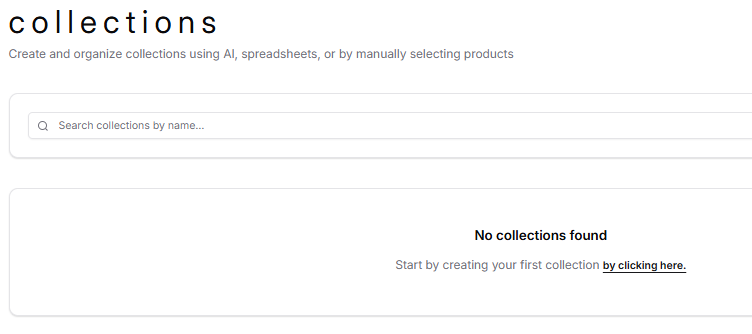
2. Create a New Collection
Create a collection by clicking the link shown in the image:
3. Open the Collection
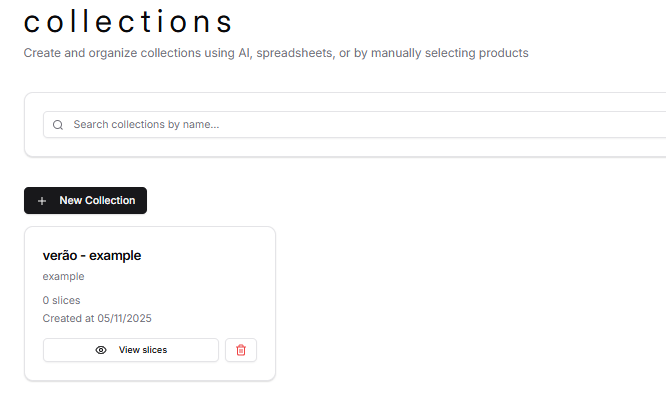
Click the view slices button to start configuring your collection:
4. Configure Collection Information
You will see a page divided into two parts:
Top Section: Collection information
- Collection name
- Description
- URL (endpoint) to use this collection on your site
- Generate link button (mobile feed to view collection products - active slice)
Bottom Section: Slices (collection versions)
5. Understanding Slices
Slices are different versions of your collection. You can create several, but only one is active at a time.
Why use slices?
- Prepare a new version without affecting the one currently live
- Perform A/B testing with different products
- Have seasonal versions ready to activate
6. Create a Slice
Create your first slice:
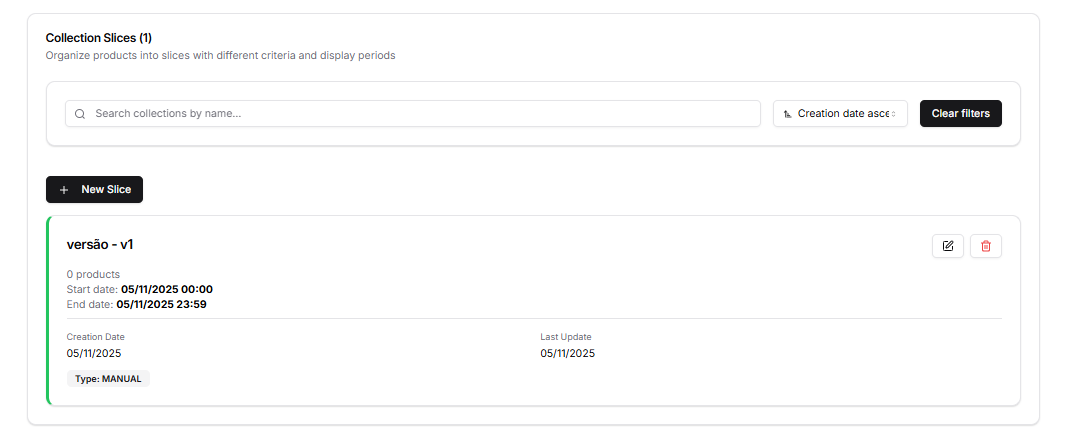
When creating a slice, you'll need to configure:
- Slice name: Give it a descriptive name (e.g., "Wool Coats", "Summer Sale Products")
- Type: Choose the slice type:
MANUAL: You manually select and organize products- Other types may be available soon
- Start date: When the slice should become active
- End date: When the slice should expire
Tip: For a slice without expiration, set a distant end date (e.g., several years in the future).
Slice Status Indicators
Slices have visual status indicators based on their dates:
- 🟩 Green (Active): The current date is between start and end date
- 🟨 Yellow (Scheduled): The start date hasn't arrived yet
- 🟥 Red (Expired): The end date has passed
7. Add Products
Click Select Products to choose which products will be part of the collection.
Select the ones you want to add.
8. Organize Product Order
Drag products to define the order they will appear on your website.
Before ordering:
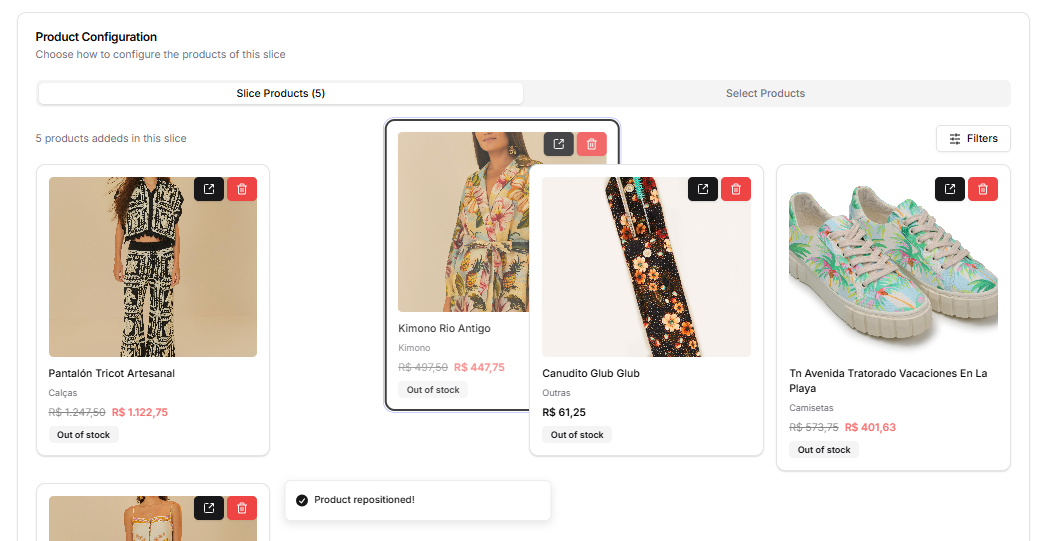
After ordering:
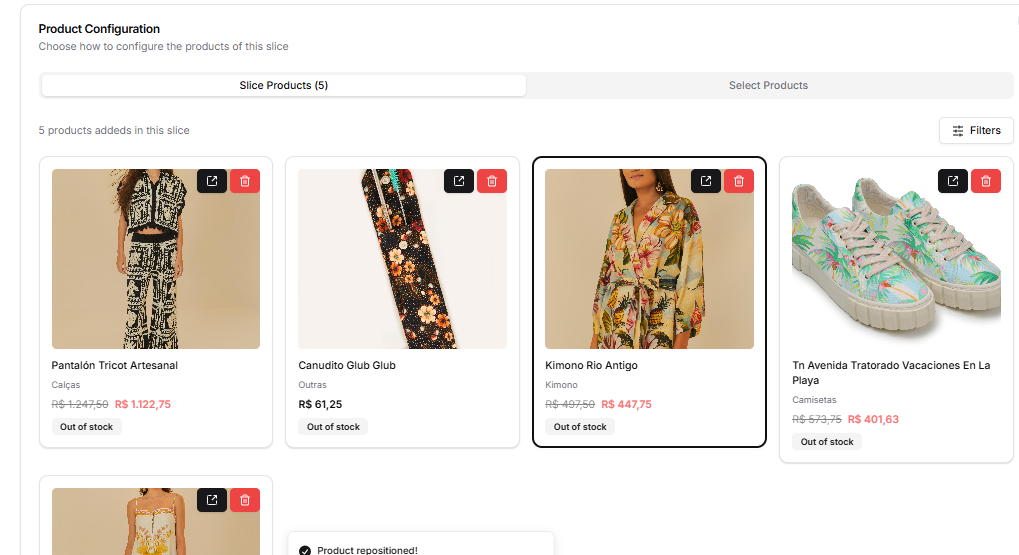
Tip: Products will appear on the site in exactly the order you define here.
9. Product Limits and Active Status
Important Limits:
- Each slice can contain up to 500 products maximum
- If you need more products, consider creating multiple collections
Product Active Status:
Each product in a slice has an active field that indicates whether the product is currently available based on filters applied to the slice. This is useful for:
- Hiding out-of-stock products
- Applying availability filters
- Managing seasonal products
Publishing Your Collection
When your collection is ready:
- Review that all products are correct
- Check that the order is as you want
- Select the period this slice should be active
Done! Your collection will now be available on the website.
Important Tips
✅ Give clear names: "Summer 2024", "Black Friday Sale", etc.
✅ Create extra slices: Always have a backup version ready
✅ Only one active: Remember that only one slice is active at a time
✅ Test first: Always review before activating a new slice
Frequently Asked Questions
Can I have multiple collections? Yes! Create as many collections as you need for different sections of your site.
How do I know which slice is active? The active slice will have a visual indicator in the interface.
How long does it take to update on the site? Changes appear almost instantly after activating a slice.
Need help? Contact our support team.